Using ArcGIS Pro to Generate an Orthomosaic with UAS Imagery
Introduction:
What is photogrammetry?
Photogrammetry is the science of taking images and creating measurements from them. When done with UAS, multiple images are taken and the flight path is flown so that there is enough overlap and sidelap for software to stitch the images together.
What types of distortion does remotely sensed imagery have in its raw form?
One type of distortion is caused by rolling shutter. If the sensor is a rolling shutter, meaning the image is not captured at a single instance but by scanning across the scene either horizontally or vertically, the images may have distortions due to the UAS platform moving while the image is being captured. Here is a Youtube video from the channel SmarterEveryDay explaining rolling shutter. *Note that this issue can be resolved by using a sensor that has a global shutter where the entire image is captured at once.
A second type of distortion is due to relief displacement. If the sensor faces directly down at nadir, the objects in the center of the sensor lens will have just their tops visible, while all objects further from the center of the lens will appear to lean away with their tops and sides showing. Figure 1 below from the Fundamentals of Remote Sensing website, is an example of this distortion.
 |
| Figure 1: Relief Displacement Distortion |
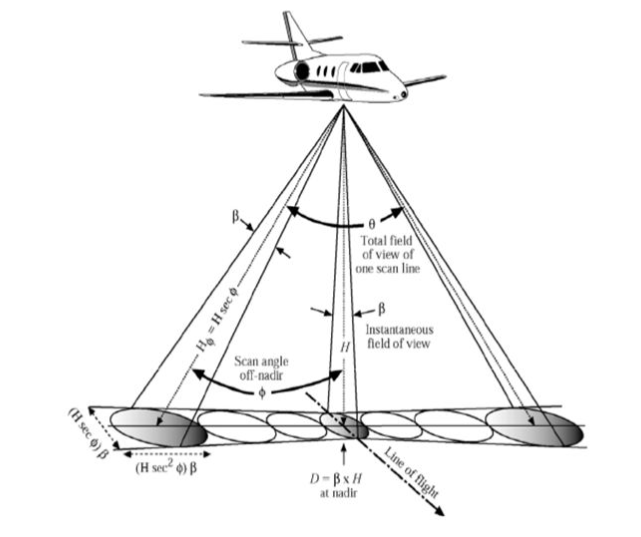 |
| Figure 2: Distortion in Scale |
What is orthorectification? What does it accomplish?
Orthorectification is the process of correcting the distortions in the imagery so that it is planimetrically correct. This orthorectified imagery has a constant scale, meaning linear (as opposed to angular) measurements of distance may be used. Figure 3 below, from the Satellite Imaging Corporation's website, is an example of a satellite image being rectified.
 |
| Figure 3: Satellite Image Orthorectification (Image Copyright © DigitalGlobe and processed by Satellite Imaging Corperation) |
What is the Ortho Mapping Suite in ArcGIS Pro? How does it relate to UAS imagery?
The Ortho Mapping Suite in ArcGIS Pro is a workspace with all the tools to create orthomosaic imagery. It allows the user to process imagery from UAS platforms, aircraft and satellites, stitch them together, and remove geometric distortions to create orthoimage sets, orthorectified images, Orthomosaics, DTMs and more.
What is Bundle Block Adjustment?
Bundle Block Adjustment is a photogrammetric technique that takes the images and adjusts them, using relationships between their overlaps, using tie points, GCPs and, Triangulation; next it overlays the images onto an existing DEM to get the vertical (Z value) elevation changes.
What is the advantage of using this method? Is it perfect?
The major advantage of using this method of overlaying the data onto a pre existing surface to get the Z values for elevation rather than computing them from scratch is that one does not have to compute the Z values. These Z values can be computed very accurately from the differences between images however, it is very resource intensive and takes a long time to compute. By overlaying the data onto the DEM it allows the computation time to be dramatically reduced.
This method is not perfect as the data for the Z values will only be as good as the DEM used.
Additionally, if one is processing data from an area of high relief or an area that requires exactness, this method would not be used.
Methods:
When creating the Orthomosaic in ArcGIS Pro, the first step is to name the project and change the location to point to the preferred folder. Next, click on the imagery tab and click on new workspace. Next, fill out the name and description information and change the type to drone and click on next at the bottom. Next, click on the add button and navigate to the folder containing the images with EXIF metadata. If the images contain the geolocation and camera type embedded in the EXIF data, make sure the geolocation box says ‘[Loaded from EXIF]’. Next, ensure the spatial reference and camera model boxes are set correctly and click on Finish. Next, click on the ortho mapping tab and click on adjust. Once complete, click on orthomosaic located under ortho mapping and click on the third horizontal blue dot and change the target raster box to world imagery. Click on the 4th horizontal blue dot and change the format box to TIFF and click finish.
Once the steps above were completed, the questions below were answered and a table was created.
What key characteristics should go into folder and file naming conventions?
When naming folders and files, folder names should go from general to specific while file names should be relatively specific with a date (organized by yyyy-mm-dd), the project name (use meaningful abbreviations) and, the file type.
Why is file management so key in working with UAS data?
When working with UAS data, good file management is key in keeping the data organized in a clear logical manner as files tend to be large and contain key metadata that if misplaced, could cause the data set to be incomplete, inaccurate, or not openable at all.
What key forms of metadata should be associated with every UAS mission?
When flying a UAS mission, key metadata that should be recorded includes the location, date, time, aircraft platform used, sensor flown, altitude flown, name and coordinate system of the ground control GPS, coordinate system of the sensor, coordinate system of the aircraft platform, image overlap and sidelap settings, visibility, sky conditions, wind and, the pilot’s name. Below is table 1 which provides the key metadata for the data that will be worked with during this lab.
 |
| Table 1: Key Metadata of Home Residence |
Results:
Once ArcGIS Pro was done processing the data, the results were examined, the questions were answered and a table containing how long each step took was created.
Discuss the quality of the data, and where you see issues in the maps.
The quality of the data over the area where the UAS platform well as certain areas where there are a little to no trees such as near the north eastern fringe is very high. (See figures 4 and 5 for images of the areas discussed above.) The data on the west side is of the images, where there are numerous trees, is lower quality than that in the center.
 |
| Figure 4: Good Quality Data Over Flight Path |
 |
| Figure 5: Good Quality Data Near North East Edge of Mosaic |
Data quality is poor towards the west side of the map where the software had trouble stitching the images together because of the trees. Figure 6 shows an example of a poorly stitched area.
 |
| Figure 6: Example of Bad Stitching |
 |
| Figure 7: Example of Stretched Edges |
Total time to completely process the data took 52 minutes 27.14 seconds. Below in Table 2 is a breakdown each part of the process and how long it took.
 |
| Table 2: Processing Time Breakdown |
 |
| Figure 8: Orthomosaic Map of Home Residence |
 |
| Figure 9: Orthomosaic Map of Home Residence with Flight Path |
Conclusions:
Summarize the Orthomosaic Tool.
The orthomosaic tool is a tool that allows people to quickly and relatively easily create orthomosaics, using the geolocation of the images and the camera information located within the EXIF metadata of the image.
Summarize the process in terms of time invested and quality of output.
The process is relatively fast when compared to processing the data through Pix4D, however the quality is less than would be created in Pix4D. This method of processing would be useful for gaining a rapid understanding of an area.
Think of what was discussed with this orthomosaic in terms of accuracy. How might a higher resolution DTM (from LiDAR) make this more accurate? Why might this approach not work in a dynamic environment such as a mine?
If one has a higher resolution DTM of an area from LiDAR, the orthomosaic would be much more accurate to what is actually on the surface as LiDAR penetrates to the surface; whereas a DSM created by photogrammetry would not be able to filter out the trees and bushes. In Addition, by having a preprocessed DTM available, it would cut out the time normally used calculating Z value elevations.
This approach, to preloading a DTM and then creating an Orthomosaic from it, could not be used in a dynamic environment such as a mine because of the constantly changing topography.
